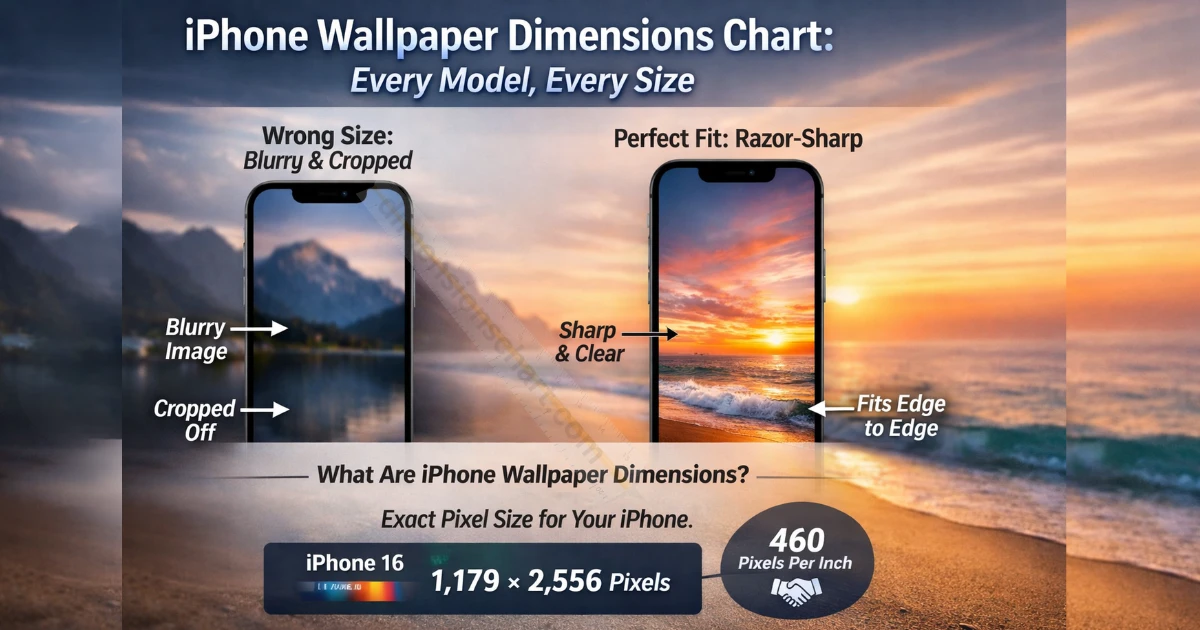
Set a wallpaper and it looks blurry — or cuts off the best part of your image? That’s a dimensions problem, not a photo problem. This complete iPhone wallpaper dimensions chart fixes that in seconds.
Every iPhone model has a specific native pixel resolution. Use the wrong size and iOS stretches or crops it. Use the right size and your screen looks razor-sharp, edge to edge.
What Are iPhone Wallpaper Dimensions?
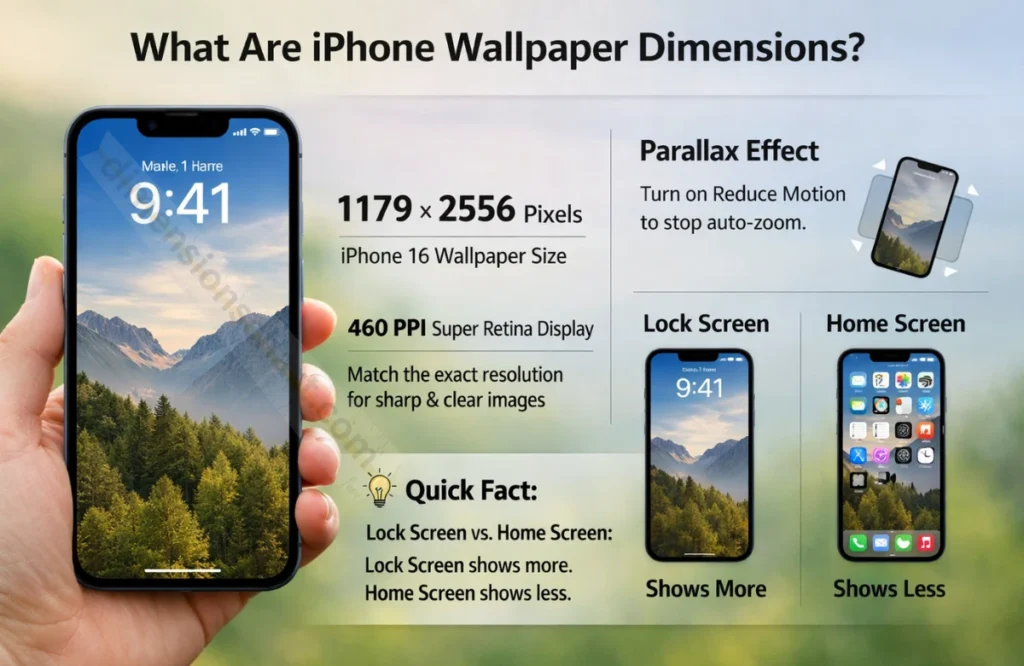
iPhone wallpaper dimensions are the exact pixel width and height your phone needs to display a wallpaper correctly. For example, the iPhone 16 needs 1,179 × 2,556 pixels. Anything smaller will look blurry.
Modern iPhones pack 460 pixels per inch (PPI) — one of the highest pixel densities on any smartphone. Your image must match your screen’s native resolution to avoid graininess.
There’s also the parallax effect to know about. When you tilt your iPhone, iOS slightly shifts the wallpaper. To stop this auto-zoom, go to Settings → Accessibility → Motion → Reduce Motion → ON.
iPhone Wallpaper Dimensions Chart (All Models)
Here’s the complete iPhone wallpaper size chart by model. Find your iPhone, grab the dimensions, done.
| iPhone Model | Screen Size | Wallpaper | Aspect Ratio | PPI |
|---|---|---|---|---|
| — iPhone 17 Series (2025) — | ||||
| iPhone 17 Pro Max | 6.9″ | 1320 × 2868 | 19.5:9 | 460 |
| iPhone 17 Pro | 6.3″ | 1206 × 2622 | 19.5:9 | 460 |
| iPhone Air | 6.6″ | 1260 × 2736 | 19.5:9 | 460 |
| iPhone 17 | 6.1″ | 1206 × 2622 | 19.5:9 | 460 |
| — iPhone 16 Series (2024) — | ||||
| iPhone 16 Pro Max | 6.9″ | 1320 × 2868 | 19.6:9 | 460 |
| iPhone 16 Pro | 6.3″ | 1206 × 2622 | 19.6:9 | 460 |
| iPhone 16 Plus | 6.7″ | 1290 × 2796 | 19.5:9 | 460 |
| iPhone 16 | 6.1″ | 1179 × 2556 | 19.5:9 | 460 |
| — iPhone 15 Series (2023) — | ||||
| iPhone 15 Pro Max | 6.7″ | 1290 × 2796 | 19.5:9 | 460 |
| iPhone 15 Pro | 6.1″ | 1179 × 2556 | 19.5:9 | 460 |
| iPhone 15 Plus | 6.7″ | 1290 × 2796 | 19.5:9 | 460 |
| iPhone 15 | 6.1″ | 1179 × 2556 | 19.5:9 | 460 |
| — iPhone 14 Series (2022) — | ||||
| iPhone 14 Pro Max | 6.7″ | 1290 × 2796 | 19.5:9 | 460 |
| iPhone 14 Pro | 6.1″ | 1179 × 2556 | 19.5:9 | 460 |
| iPhone 14 Plus | 6.7″ | 1284 × 2778 | 19.5:9 | 458 |
| iPhone 14 | 6.1″ | 1170 × 2532 | 19.5:9 | 460 |
| — iPhone 13 & 12 Series — | ||||
| 13 Pro Max / 12 Pro Max | 6.7″ | 1284 × 2778 | 19.5:9 | 460 |
| 13 Pro / 12 Pro / 13 / 12 | 6.1″ | 1170 × 2532 | 19.5:9 | 460 |
| 13 Mini / 12 Mini | 5.4″ | 1080 × 2340 | 19.5:9 | 460 |
| — iPhone 11 & SE Series — | ||||
| iPhone 11 Pro Max | 6.5″ | 1242 × 2688 | 19.5:9 | 458 |
| iPhone 11 Pro | 5.8″ | 1125 × 2436 | 19.5:9 | 458 |
| iPhone 11 | 6.1″ | 828 × 1792 | 19.5:9 | 326 |
| iPhone SE (3rd Gen) | 4.7″ | 750 × 1334 | 16:9 | 326 |
How to Check Your iPhone Wallpaper Size
Not sure which iPhone you have? These three methods take under 60 seconds each.
Method 1 — Settings Check Go to Settings → General → About → Model Name. Match your model to the chart above for exact wallpaper pixel dimensions.
Method 2 — Screenshot Trick Take a screenshot (Side Button + Volume Up). Open Photos → tap the screenshot → tap the (i) icon. You’ll see something like “1179 × 2556” — that is your perfect wallpaper resolution.
Method 3 — Apple’s Official Page Visit Apple’s iPhone compare page. Select your model and look under the Display section for native resolution.
How to Make iPhone Wallpaper Fit
Got a great image but it keeps zooming in or cutting off? Here are four fast fixes.
Use the Exact Pixel Size
The cleanest fix. Create or download your wallpaper at your model’s exact native resolution from the chart. iOS displays it perfectly — no cropping, no stretching.
Pinch to Reposition in iOS
Go to Settings → Wallpaper → Add New Wallpaper. Select your image. Use pinch-to-zoom and drag to reframe. Works great for portraits and landscapes.
Turn Off Parallax
Go to Settings → Accessibility → Motion → Reduce Motion → ON. This stops iOS from auto-zooming and shows your wallpaper at its true full resolution.
Design It in Canva
Open Canva, set canvas to your exact dimensions (e.g., 1,179 × 2,556 px for iPhone 16). Design, export as PNG for graphics or JPEG for photos. Transfer via AirDrop.
Best Universal iPhone Wallpaper Size
Don’t want to look up your exact model? These safe universal sizes work across most modern iPhones without any quality loss.
| Use Case | Recommended Size |
|---|---|
| Most iPhones (12 through 16) | 1,290 × 2,796 px |
| All modern iPhones (Safest Choice) | 1,320 × 2,868 px |
| Universal — any phone, any model | 3,840 × 2,160 px (4K) |
Conclusion
Getting your iPhone wallpaper dimensions right is the fastest way to make your screen look sharper and more personal. Use the chart, match your model, download or create at the exact pixel resolution — and your wallpaper will look flawless every time.
FAQ’s
What is the size for an iPhone wallpaper?
It depends on your model. Most modern iPhones (12 through 16) use sizes between 1,080 × 2,340 px and 1,320 × 2,868 px. The safest size that works across all recent iPhones is 1,290 × 2,796 pixels. Check the chart above for your exact model.
Is 16:9 wallpaper size?
Yes, 16:9 is valid — but only for older iPhones and the iPhone SE (3rd Gen). All iPhones from iPhone 12 onward use taller ratios like 19.5:9. A 16:9 image will look cropped or stretched on modern models.
What size is a 1920×1080 wallpaper?
1920 × 1080 pixels is Full HD with a 16:9 aspect ratio — ideal for desktop monitors. For modern iPhones it’s too wide and not tall enough. It will appear blurry and heavily cropped. Use a 19.5:9 ratio image instead.
What size is the iPhone 17 wallpaper?
The iPhone 17 Pro Max uses 1,320 × 2,868 px. The iPhone 17 Pro and standard iPhone 17 both use 1,206 × 2,622 px. The new iPhone Air uses 1,260 × 2,736 px. All run at 460 PPI with a 19.5:9 aspect ratio.
Is the iPhone 17 screen size?
The iPhone 17 Pro Max has a 6.9-inch display. iPhone 17 Pro is 6.3 inches, iPhone Air is 6.6 inches, and standard iPhone 17 is 6.1 inches. Screen size is the diagonal physical measurement — separate from wallpaper resolution in pixels.
How to make iPhone wallpaper fit?
Use an image sized to your iPhone’s exact native resolution from the chart. To adjust an existing photo, go to Settings → Wallpaper → Add New Wallpaper and use pinch-to-zoom to reframe. To stop auto-zoom, turn on Reduce Motion in Accessibility settings.

Burhan Ali is the founder and author of DimensionsChart.com, providing accurate size charts, measurements, and guides for smarter buying decisions.